
API tokens and scopes
A token is a key with which a program or AI assistant works on your behalf: through the REST API or the MCP server. You create tokens yourself on Integrations > API tokens. Everything a token does is listed on Activity under your name, with the token’s name next to it.
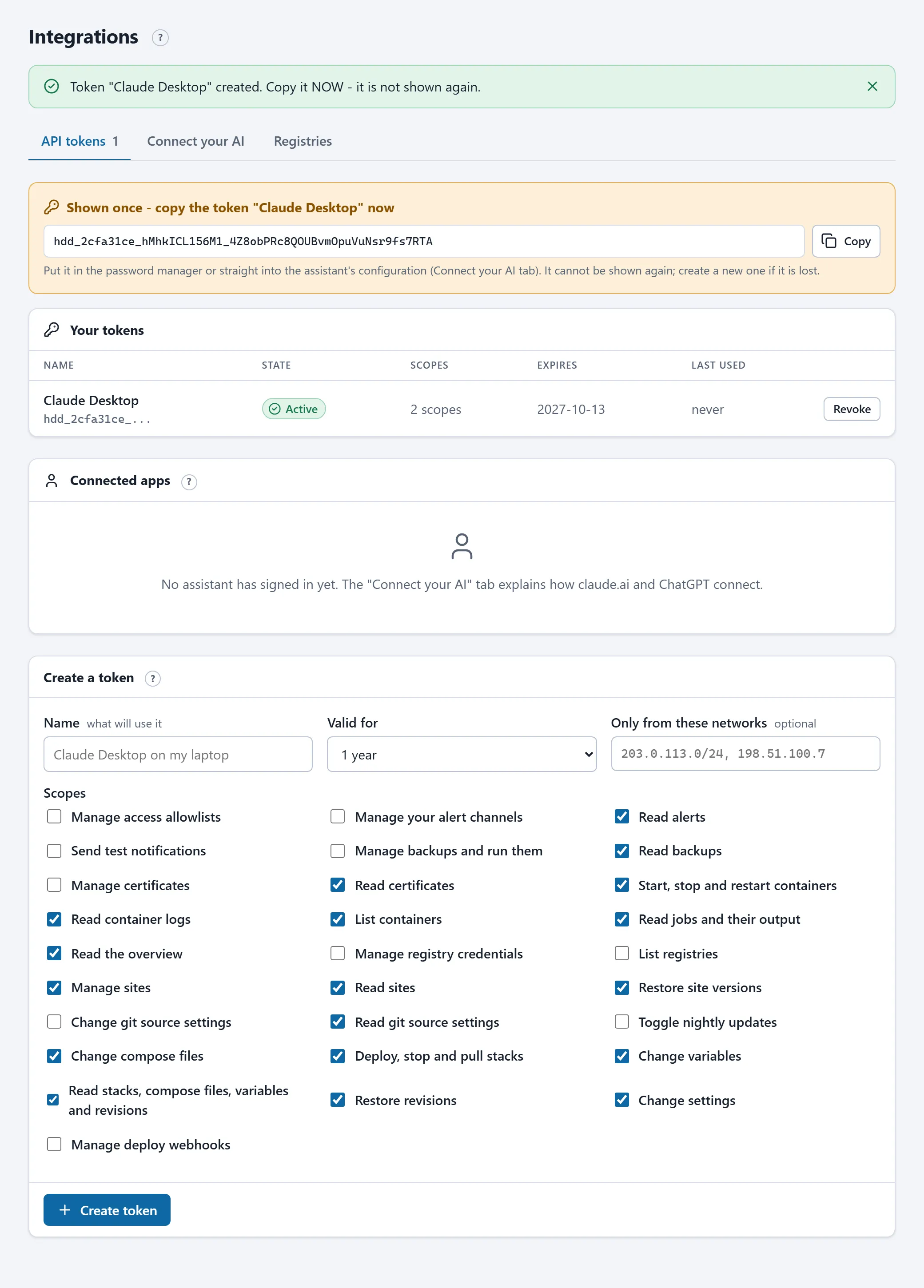
Creating a token
Section titled “Creating a token”- Give the token a name that says what will use it (“Claude Desktop on my laptop”, “GitHub Actions web shop”).
- Pick the validity: 1 year (default), 90 days or 30 days. After that the token stops working; create a new one then.
- Tick the scopes: the token’s permissions. The pre-ticked set is meant for an AI assistant (see below).
- Optional: Only from these networks. Enter one or more networks (
203.0.113.0/24, 198.51.100.7); the token then only works from those addresses. Leave it empty for an assistant that runs in the cloud. - Click Create token. The token (
hdd_...) is shown once. Copy it straight to your password manager or your assistant’s configuration.
Scopes
Section titled “Scopes”A scope is one permission, with a fixed name. A token can never do more than your own account, and can never manage tokens or users. The scopes are fixed at creation: to add one, create a new token.
| Scope | Permission |
|---|---|
overview.read |
Read the overview |
containers.read |
List containers |
containers.control |
Start, stop and restart containers |
containers.logs |
Read container logs |
jobs.read |
Read jobs and their output |
stacks.read |
Read stacks, compose files, variables and revisions |
stacks.compose.write |
Change compose files |
stacks.env.write |
Change variables |
stacks.settings.write |
Change settings (template fields) |
stacks.deploy |
Deploy, stop and pull stacks |
stacks.autoupdate |
Toggle the nightly update |
stacks.revisions.restore |
Restore revisions |
source.read |
Read a stack’s git source |
source.manage |
Change the git source, pin, upload source code |
webhooks.manage |
Manage deploy webhooks |
access.entries.manage |
Manage access lists |
sites.read |
Read sites and their files |
sites.manage |
Manage sites and upload content |
sites.restore |
Restore previous versions of sites |
backups.read |
Read backups |
backups.manage |
Manage backups and run them |
alerts.read |
Read alerts |
alerts.test |
Send test notifications |
alerts.channels.client.manage |
Manage your own alert channels |
certificates.read |
Read certificates |
certificates.manage |
Request and upload certificates |
registries.read |
List registry logins |
registries.manage |
Manage registry logins |
The recommended set
Section titled “The recommended set”The pre-ticked scopes let an assistant read everything, operate stacks and containers and manage site content, but keep it away from credentials, alert channels and certificates:
overview.read, containers.read, containers.control, containers.logs, jobs.read, stacks.read, stacks.compose.write, stacks.env.write, stacks.settings.write, stacks.deploy, stacks.revisions.restore, source.read, sites.read, sites.manage, sites.restore, backups.read, alerts.read, certificates.read.
A script that only deploys needs stacks.read plus stacks.deploy plus jobs.read. A script that uploads a website: sites.read, sites.manage and sites.restore.
Limits
Section titled “Limits”- Each token gets 120 requests per minute (upload operations do not count). Above that the server answers 429.
- The portal’s IP filter does not apply to tokens. If you want that protection anyway, bind the token to your networks.
- A token works until its expiry date or until you revoke it. If your account is disabled, all your tokens expire at once.
Revoking
Section titled “Revoking”On the same page every token has a Revoke button. Whatever still uses the token is locked out immediately. Revoke a token as soon as you suspect it leaked, and create a new one; replacing a token takes a minute.
HD Services technicians see clients’ tokens (not the key itself, but the name, scopes and last use) and can revoke them during an incident. You then see that in your own list.
Connected apps
Section titled “Connected apps”Assistants that sign in through your browser (claude.ai, ChatGPT) use no token. They appear on the same page under Connected apps, with the permissions you gave them, and Disconnect revokes the connection. See Signing in from claude.ai and ChatGPT.