
Alerts
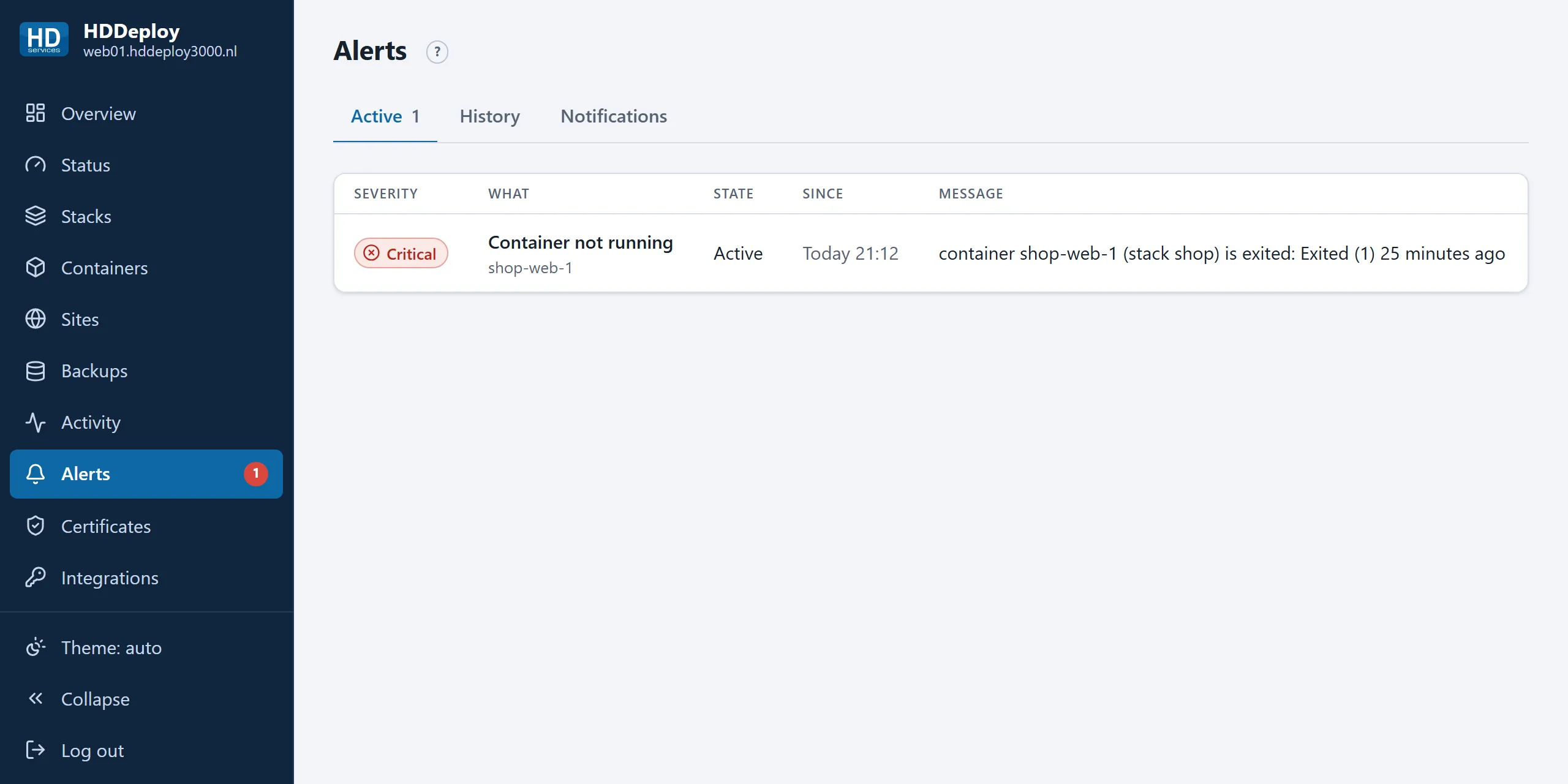
Your server watches itself. Every minute it checks a fixed list of things; whatever is not in order appears on the Alerts page, in the red number in the menu and at the top of the Overview. HD Services receives every alert as well, and acts on what concerns the platform.
What is watched
Section titled “What is watched”| Check | When it alerts |
|---|---|
| Container not running | A service container is not running, three checks in a row (a container that restarts briefly does not alert). A one-off task only alerts when it ended with an error. |
| Disk almost full | The disk is 85 % full or more. |
| Certificate expires soon | A certificate expires within 21 days. |
| Backup overdue | A backup has not succeeded for more than 26 hours. |
| Backup disk not mounted | The separate backup disk is unavailable; backups land on the system disk meanwhile. |
| Job failed | A deploy, stop or backup failed. |
| Site sync failed | A site could not be checked or synced. |
| Self-update failed | The portal software could not update itself. |
| Access list changed | An access list was changed (informational). |
A problem that was seen but not for long enough to be sure is shown as Checking. An Active alert is mailed, repeated daily while it lasts, and mailed once more when it is resolved.
Reachability of your website from the outside is not watched here but centrally by HD Services.
History
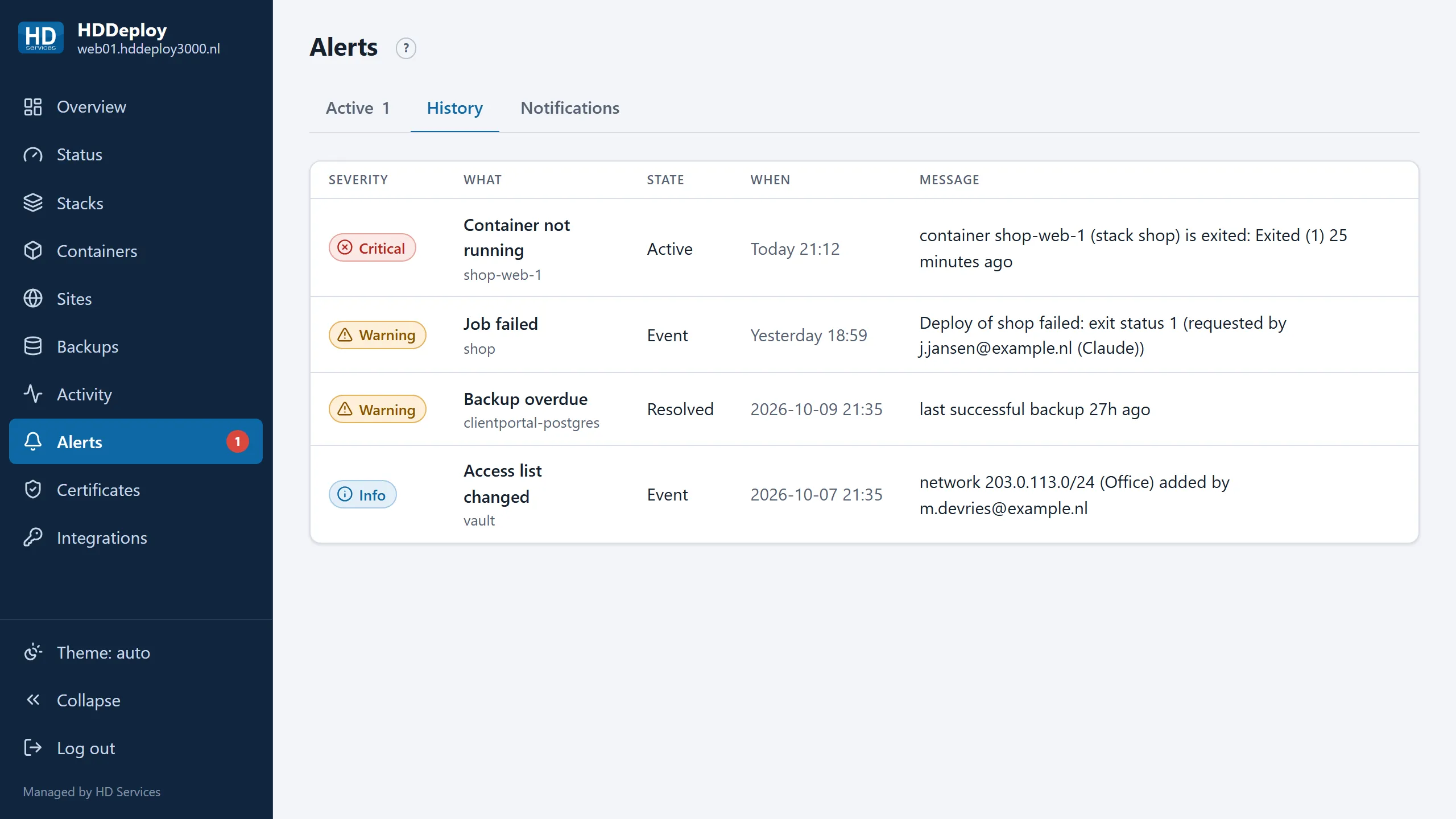
Section titled “History”The History tab shows recent alerts with their start and end time, and events such as a failed job or a changed access list.
Your own alert channels
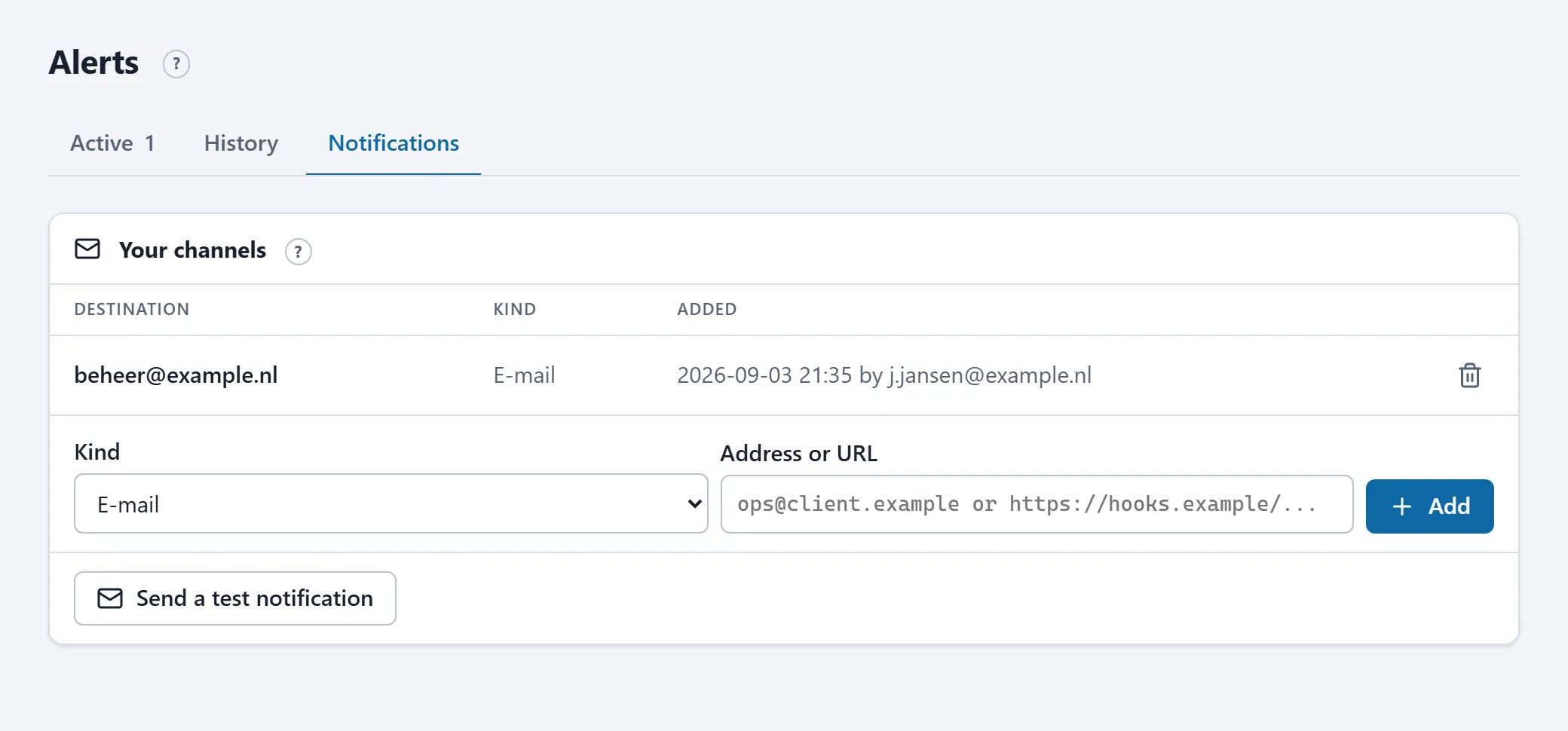
Section titled “Your own alert channels”On the Notifications tab you add e-mail addresses and webhooks. Every alert of your server, and the message that it is resolved, then goes there as well. Mail is sent through HD Services’ mail server; a webhook receives one JSON message per event. Send a test notification checks that it arrives.
HD Services’ own channels are not shown; they keep working whatever you set up here.
Alert seen, what now?
Section titled “Alert seen, what now?”- Container not running: open the container on the Containers page, read the log, start the container again or redeploy the stack.
- Job failed: open the job on Activity and read the output. After a failed deploy the previous version is still running; restore a revision if needed.
- Backup overdue / failed: check that the database container runs and start the backup by hand.
- Disk almost full: remove old backup files or files in your application, or ask HD Services for more disk space.
- Certificate expires soon: only relevant for a certificate you uploaded yourself; request a new one from your supplier and upload it. Automatic certificates renew themselves.