
Containers and logs
A container is a running part of a stack. The Containers page shows all of them, with the stack they belong to, their state and their role.
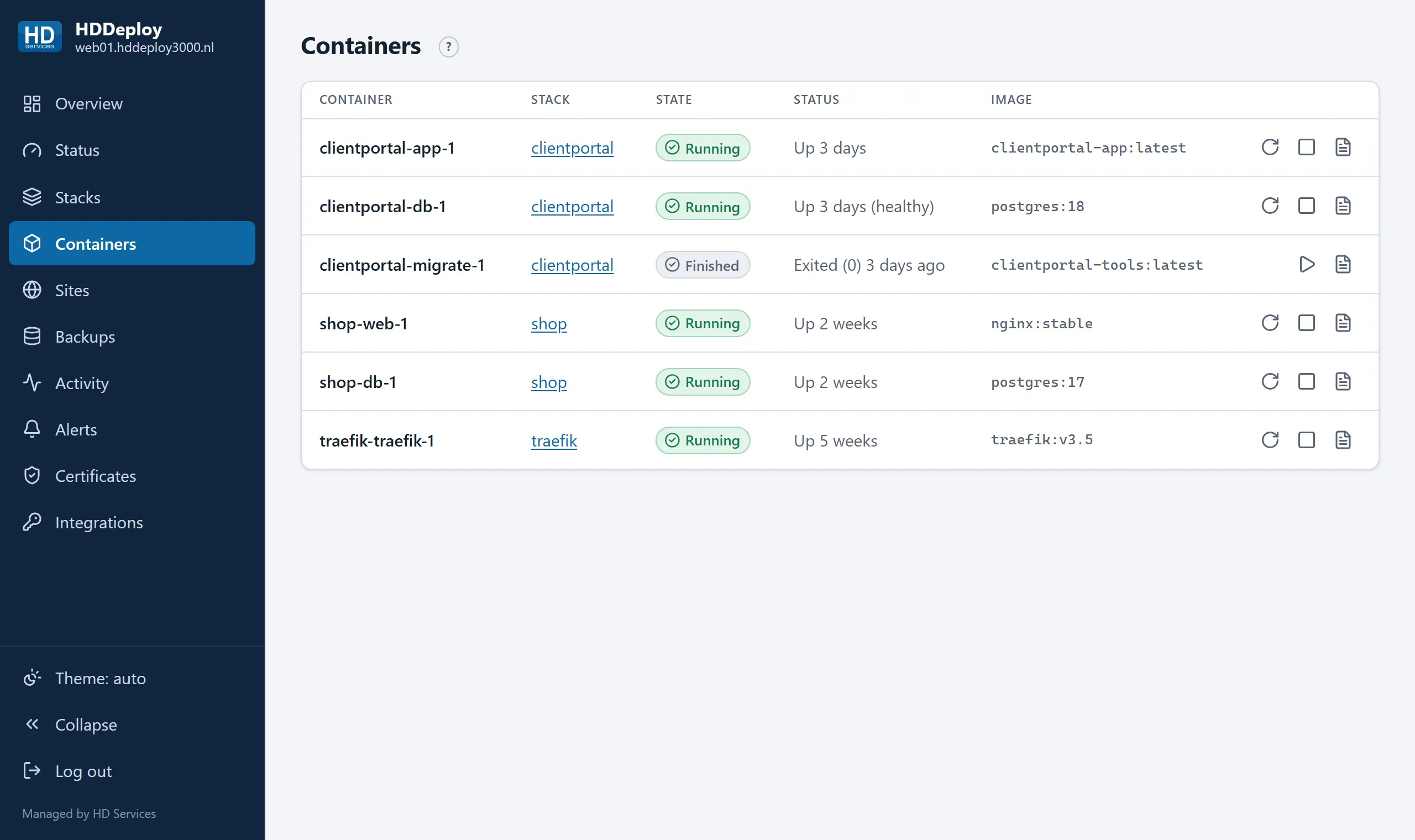
Not every container is supposed to keep running. The portal knows four roles:
| Role | Meaning |
|---|---|
| Service | A part that must always run (web server, database). Stopped means a problem. |
| Finished | A one-off task that is done, a database migration for example. Being stopped is the point. |
| Waiting | A one-off task that still has to get its turn. |
| Failed | A one-off task that ended with an error. This counts as a problem and raises an alert. |
For a stack’s state (“2/2 running”) only services and failed tasks count.
Start, stop, restart
Section titled “Start, stop, restart”Behind every container are buttons to start, stop or restart it. That is meant for fixing a problem with one part. For a whole application use Deploy and Stop on the stack’s page: those keep all parts consistent together.
A stopped container stays stopped until you start it or redeploy the stack.
Locked containers
Section titled “Locked containers”Containers with a padlock cannot be operated:
- containers of the platform (the web gateway), which belong to HD Services;
- protected services: parts HD Services marked at your request, for example a database that must not be stopped by accident.
You can still read their logs, except those of the platform itself.
Click Logs next to a container. You see the latest lines with timestamps; the page follows the log live while it is open. The text comes from the application itself; what it says is up to your software.

Through the MCP server your AI assistant can read and summarise the same logs, for example “show the errors in the last 200 lines”.