
Backups
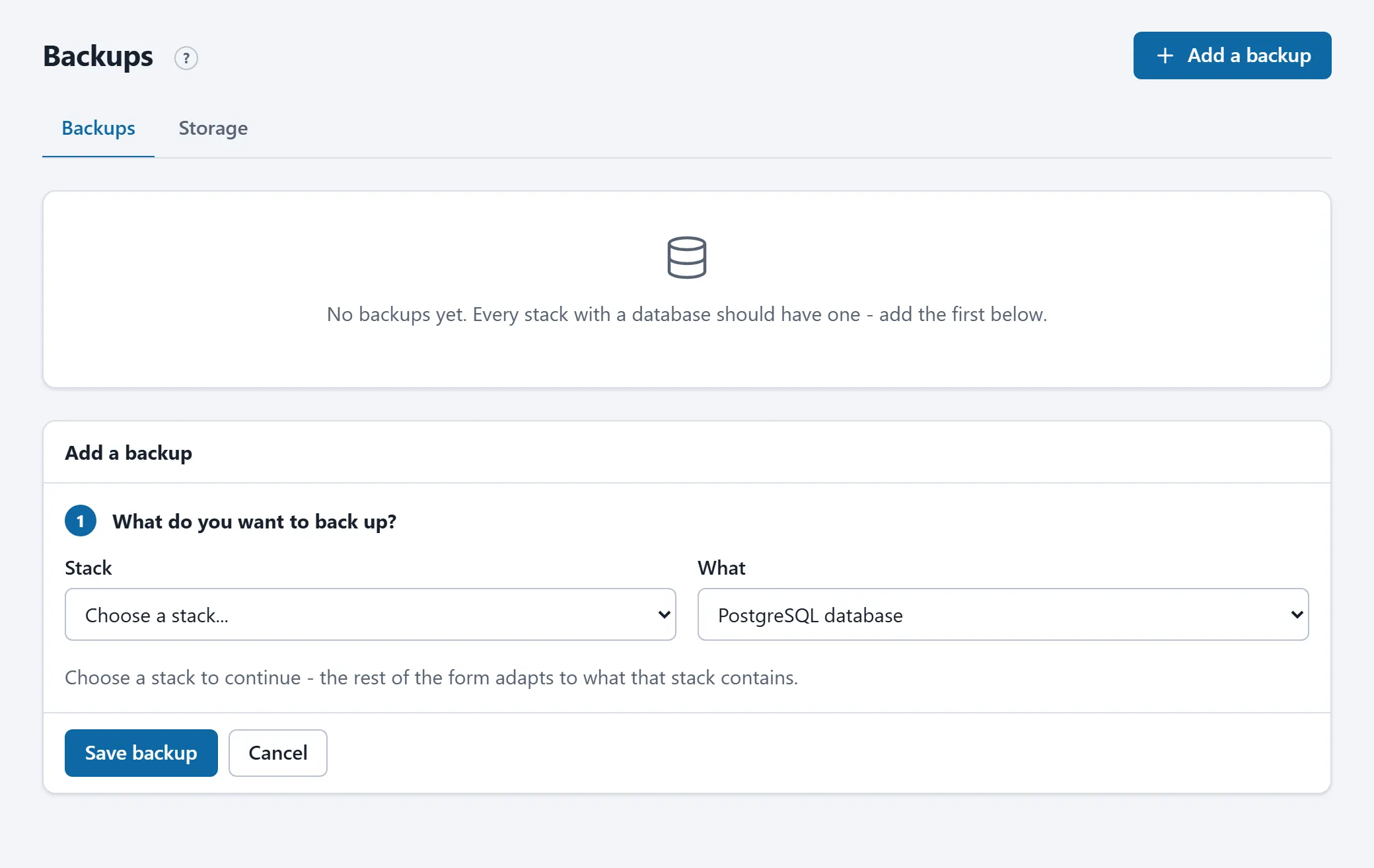
Every stack with a database should have a backup. The Backups page shows, per backup, the last result, the next scheduled run and the newest file.
What can be backed up
Section titled “What can be backed up”| Kind | What happens |
|---|---|
| PostgreSQL / MariaDB / MySQL | The database is dumped from inside its own container, compressed and verified. The server reads the login from the container itself; you configure nothing. |
| Vaultwarden | The built-in SQLite backup plus attachments, keys and configuration, as one archive. |
| Volume | The complete contents of a file volume (uploaded files, product photos) as one archive. Works while the stack is stopped too. |
| Git repository | Every night the complete repository (all branches, tags and history) as one file, so the source stays safe if the GitHub account is lost. |
Schedule and retention
Section titled “Schedule and retention”A backup runs every day at a fixed time (03:00 for example). Per backup you set how many files are kept: the newest n always, plus per week the newest of that week for a number of weeks. The files live on the server, on a separate backup disk when the server has one (Storage tab).
Adding or changing a backup
Section titled “Adding or changing a backup”With Add a backup you pick the stack and what to back up; the portal recognises databases and volumes in the stack and suggests the name. Under Schedule, retention and location you pick the time, the retention and optionally a location of your own.
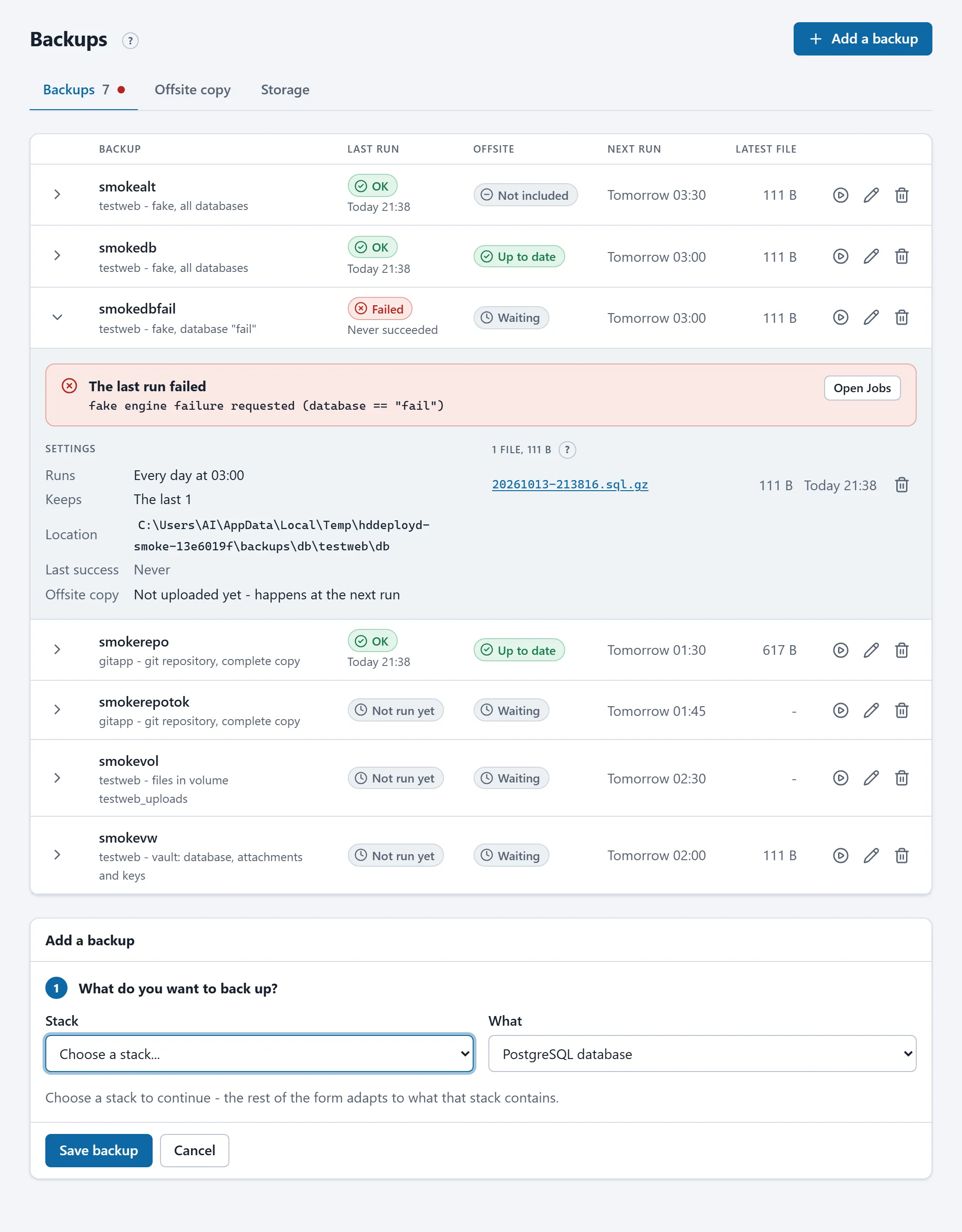
The pencil edits an existing backup; Run now (the play icon) starts one right away. The result appears on Activity.
Files and restoring
Section titled “Files and restoring”Expand a backup to see its files, with size and time. You can download or delete a file.
Restoring a backup is a manual procedure HD Services performs for you: mail helpdesk@hdservices.nl with the name of the backup and the file you want. Restoring from the portal is on the roadmap.
Copy outside the server
Section titled “Copy outside the server”HD Services also stores every successful backup, encrypted, at a location outside your server. That copy and its key are managed by HD Services; the Offsite column shows whether the copy is up to date. A failed copy counts as a failed backup and raises an alert.
When a backup fails
Section titled “When a backup fails”The backup gets the state Failed, the reason is shown with the backup itself, it appears at the top of the Overview and you receive an alert. Common causes: the database container is not running, or the disk is full. Fix the cause and start the backup again with Run now.