
Logging in and access
The portal of your environment lives at https://<your-server>.hddeploy3000.nl. The address is in the e-mail you received from HD Services.
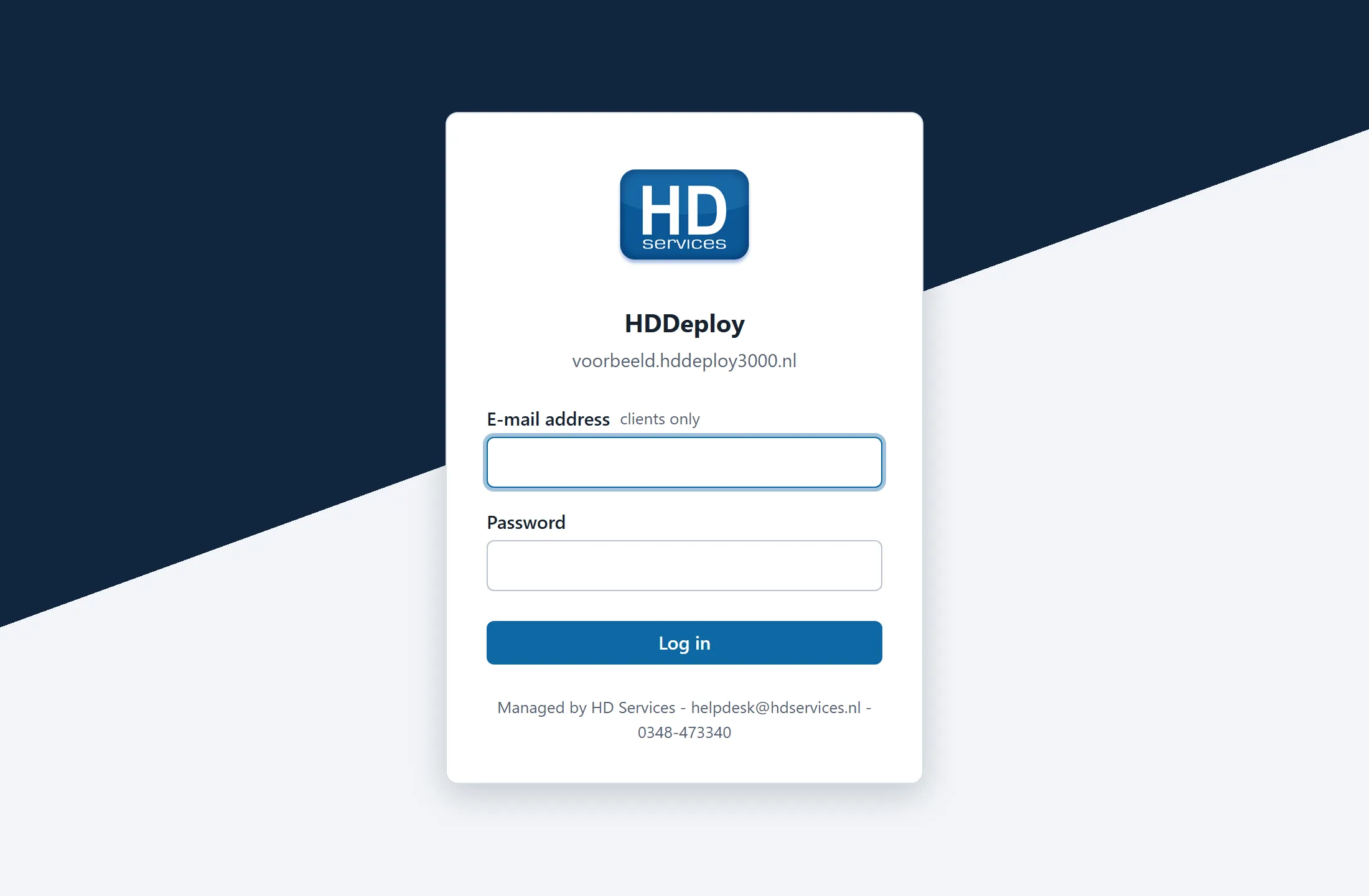
Personal accounts
Section titled “Personal accounts”- Every employee gets their own account: e-mail address plus password. There is no shared client password.
- Accounts are created by HD Services. To add or remove a colleague, or to have a password reset, mail helpdesk@hdservices.nl. Passwords are stored as hashes and cannot be looked up, only replaced.
- Enter your e-mail address in the E-mail address field (case does not matter) and your password. HD Services technicians leave the e-mail field empty; that field is for clients only.
- When an account is disabled it is logged out at once, and every API token and connected assistant of that account expires with it.
The IP filter
Section titled “The IP filter”An IP filter protects the portal: logging in and working in the portal is only possible from the networks HD Services registered for you, usually your office or VPN address. If logging in from home fails, that is why. Ask HD Services to add a network, or work through your VPN.
The filter does not apply to the API and the MCP server: there you work with tokens, which you can bind to networks yourself. See API tokens and scopes.
Two roles
Section titled “Two roles”| Role | Who | What |
|---|---|---|
| Client | You and your colleagues | Everything about your own applications: stacks, containers, sites, backups, alerts, certificates, integrations. |
| Technician | HD Services | The same, plus the platform itself: creating and deleting stacks, the web gateway, system settings, users. |
The portal only shows what you may operate. A button or page you do not see does not exist for your role; nothing is ever “greyed out”. Parts that belong to HD Services, such as the web gateway’s container, are marked as locked.
After logging in
Section titled “After logging in”You land on the Overview: a page that says at a glance whether everything is fine and, if not, what needs attention. The pages in the menu on the left are described one by one in A tour of the portal.
Logging out and sessions
Section titled “Logging out and sessions”Log out at the bottom of the menu ends the session. A session also expires by itself after a while without use. Everything you do in the portal appears under your name on the Activity page, just like what a script or assistant does with your token.